Configure Hermes Desktop
Connect Hermes Desktop to a running Hermes instance by using the remote gateway URL and gateway password from MyBrandMetrics.
Configure Hermes Desktop
Use this guide to connect Hermes Desktop to a Hermes instance that is already running in MyBrandMetrics.
You can arrive here from the Configure Desktop Client link on a Hermes instance card. If you have not created an instance yet, start with Create an agent instance.
Before you start
- You are signed in to MyBrandMetrics.
- You already created a Hermes instance.
- The instance status is
running. - You can open Hermes Desktop on your computer.
- You can view the instance
Access URLandGateway token / Passwordon theAgentspage.
If your instance is still queued or starting, finish provisioning first. Hermes Desktop cannot sign in until the runtime is ready.
What you need from MyBrandMetrics
Open Agents, then find the Hermes instance you want to use.
Copy these two values:
Access URL: the base URL for your Hermes runtime.Gateway token / Password: the password used during sign-in.
You will use them like this in Hermes Desktop:
- MyBrandMetrics
Access URL-> Hermes DesktopRemote URL - MyBrandMetrics
Gateway token / Password-> Hermes Desktop sign-inPassword
Important: do not paste the Access URL directly as the final Remote URL. You must manually add -remote to the hostname.
Example:
Access URL:https://uuid.clawbus.comRemote URLto enter in Hermes Desktop:https://uuid-remote.clawbus.com
Always describe the URL by using uuid as the placeholder instead of a real instance ID.
Step 1: Open Hermes Desktop
Launch Hermes Desktop.
Open Settings -> Gateway.
On the Gateway page, prepare to configure the desktop client to use a remote gateway.
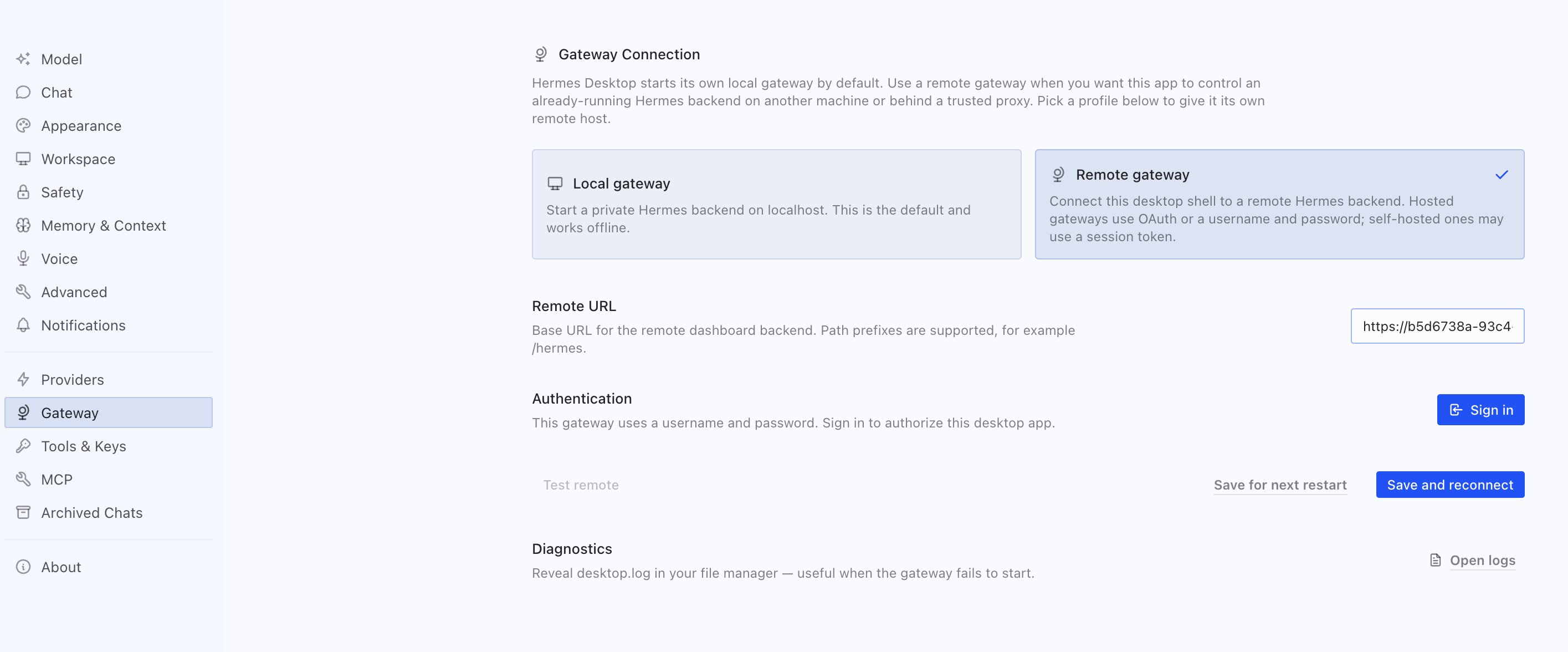
Step 2: Configure the remote gateway
In Gateway, first select Remote gateway.
Then fill in Remote URL.
Use the instance Access URL from the Agents page, but manually add -remote to the hostname:
Access URLfromAgents:https://uuid.clawbus.comRemote URLfor Hermes Desktop:https://uuid-remote.clawbus.com
Make sure:
- The URL keeps the
https://prefix. - You add
-remotebefore.clawbus.com. - You do not add extra spaces.
After the Remote URL is accepted, wait for Hermes Desktop to verify Authentication.
When verification succeeds, the Sign in button becomes available.
Step 3: Sign in
Click Sign in.
Use these credentials:
Username:adminPassword: the instanceGateway token / Passwordfrom theAgentspage
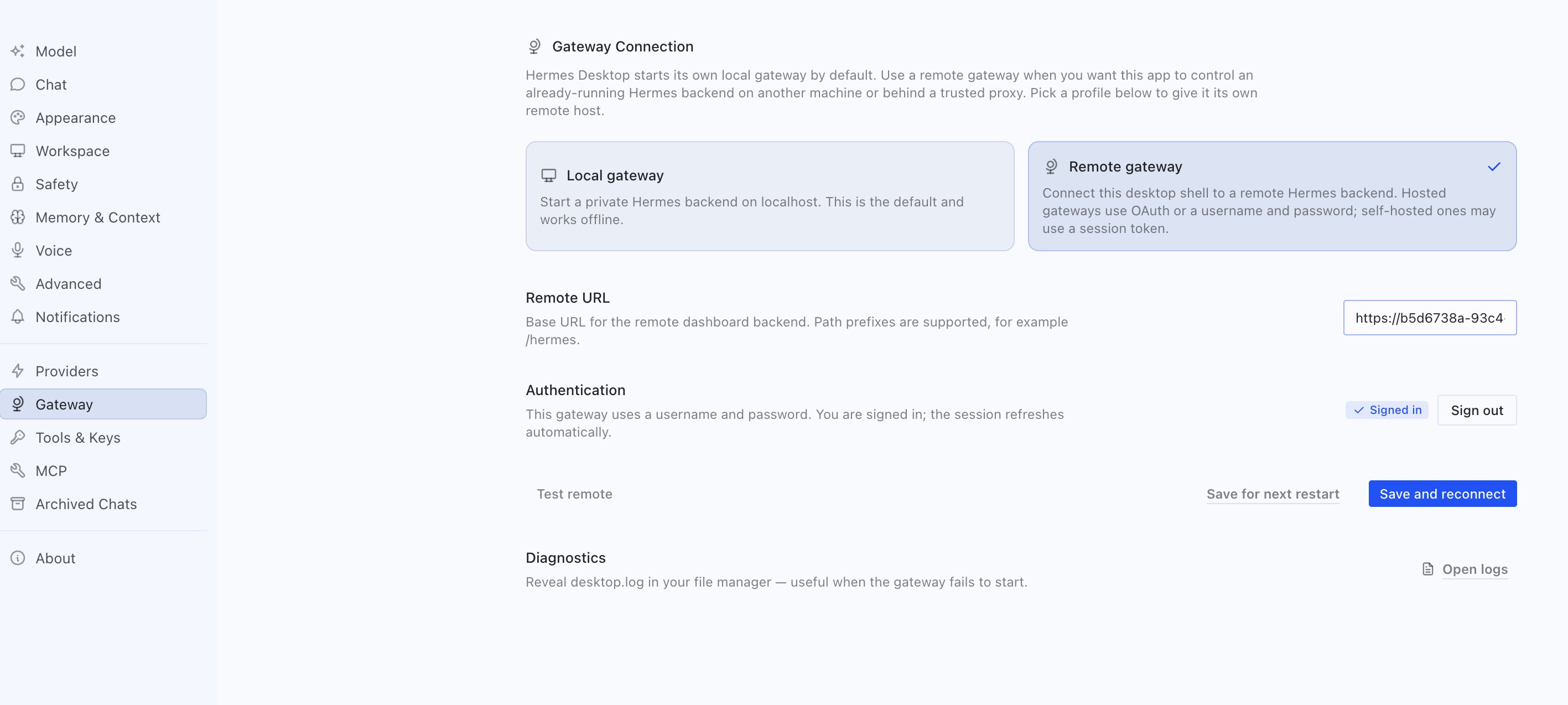
If sign-in succeeds, Hermes Desktop will show that authentication is complete.
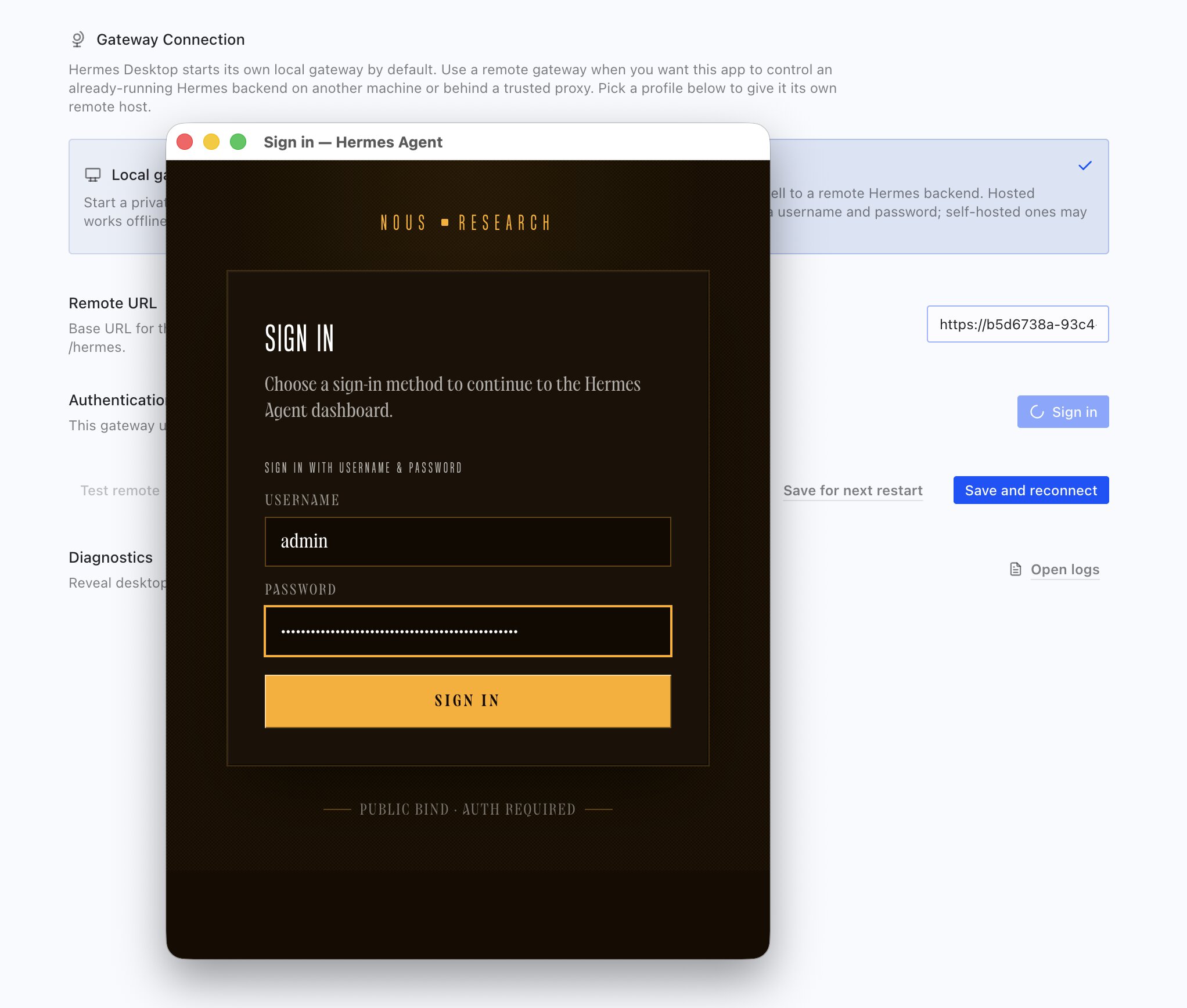
Step 4: Save and reconnect
After sign-in succeeds, click Save and reconnect.
Hermes Desktop will restart and reconnect by using the saved remote gateway settings.
Wait for Hermes Desktop to finish restarting. After that, you can start chatting with the connected Hermes instance.
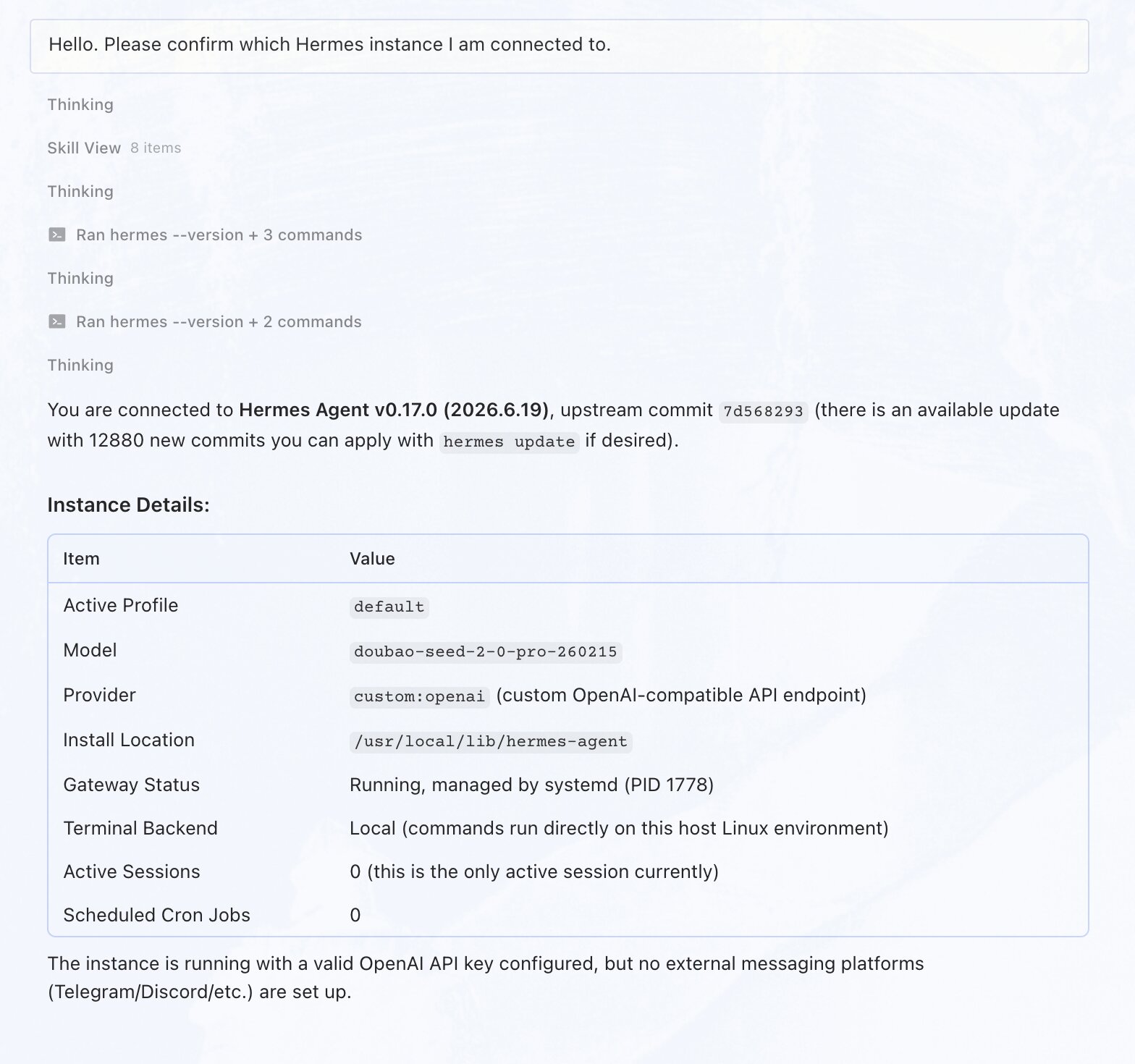
Step 5: Verify the connection
Send a short test message in Hermes Desktop to confirm the connection is working.
The configuration is complete if:
- Hermes Desktop opens normally after restart.
- The client does not ask you to sign in again right away.
- The Hermes instance replies to your message.
Troubleshooting
Remote URL does not pass validation
- Confirm the instance status is
running. - Make sure you changed
https://uuid.clawbus.comtohttps://uuid-remote.clawbus.com. - Make sure
-remoteis included exactly once. - Make sure the URL still starts with
https://.
Sign in fails
- Confirm the username is
admin. - Re-copy
Gateway token / Passwordfrom theAgentspage. - Make sure there are no leading or trailing spaces in the password.
- If the instance was recreated or the password changed, use the latest value from the current instance card.
Hermes Desktop reconnects but chat does not work
- Wait for Hermes Desktop to finish restarting after you click
Save and reconnect. - Confirm the saved
Remote URLstill uses the-remotehostname. - Try sending a simple test message again after the app reconnects.