Set up web automation
Install MyBrandMetrics Browser Automation, pair your browser device, and use Hermes to run web automation tasks.
Set up web automation
Use this guide to install the MyBrandMetrics Browser Automation Chrome extension, pair it with MyBrandMetrics, and run browser automation through Hermes.
Prerequisites
- You can use Google Chrome.
- You are signed in to the Google account you want to use with the extension.
- You can sign in to MyBrandMetrics.
- You have a Hermes instance, or you can create one from the
Agentspage.
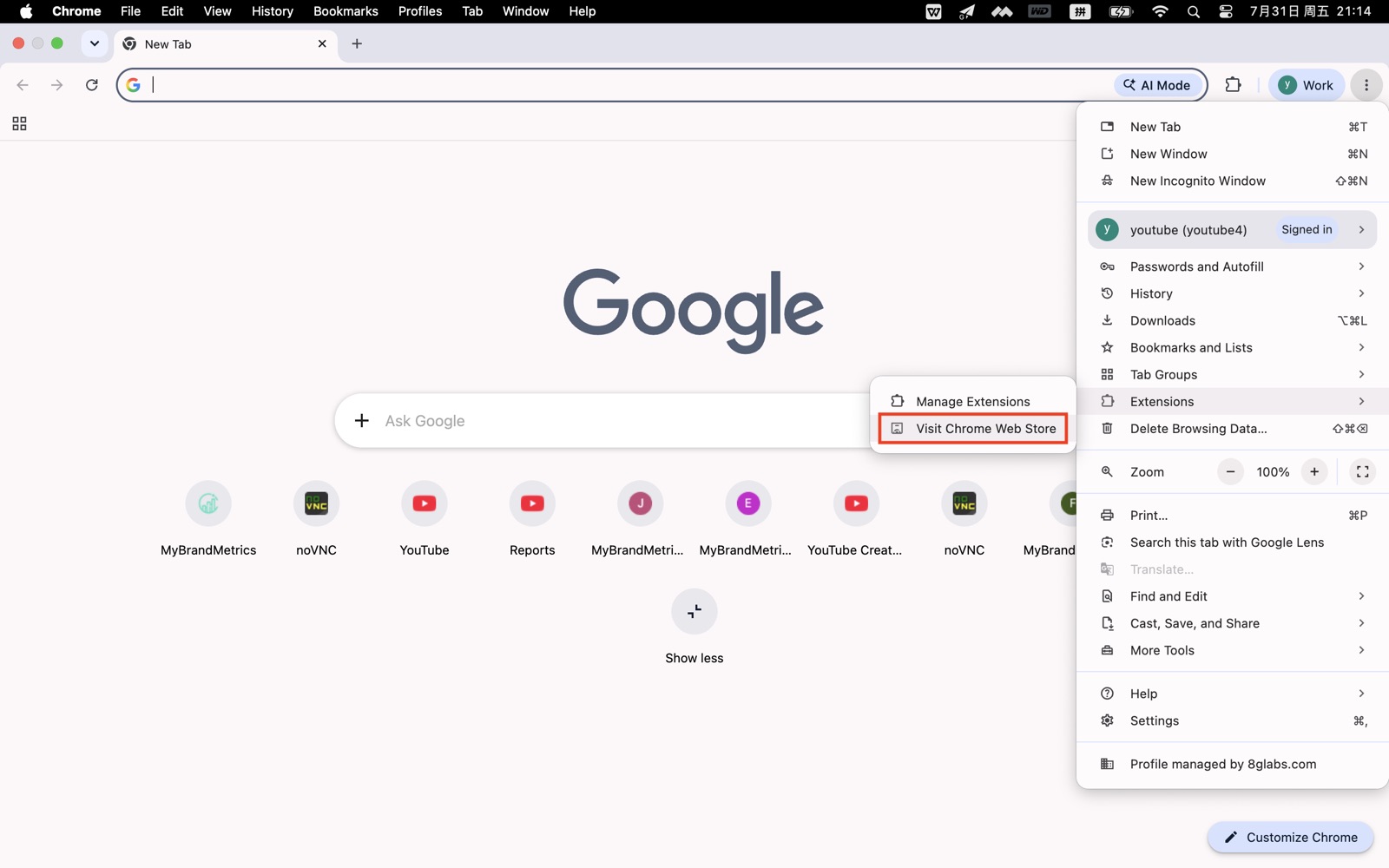
Step 1: Open Chrome Web Store
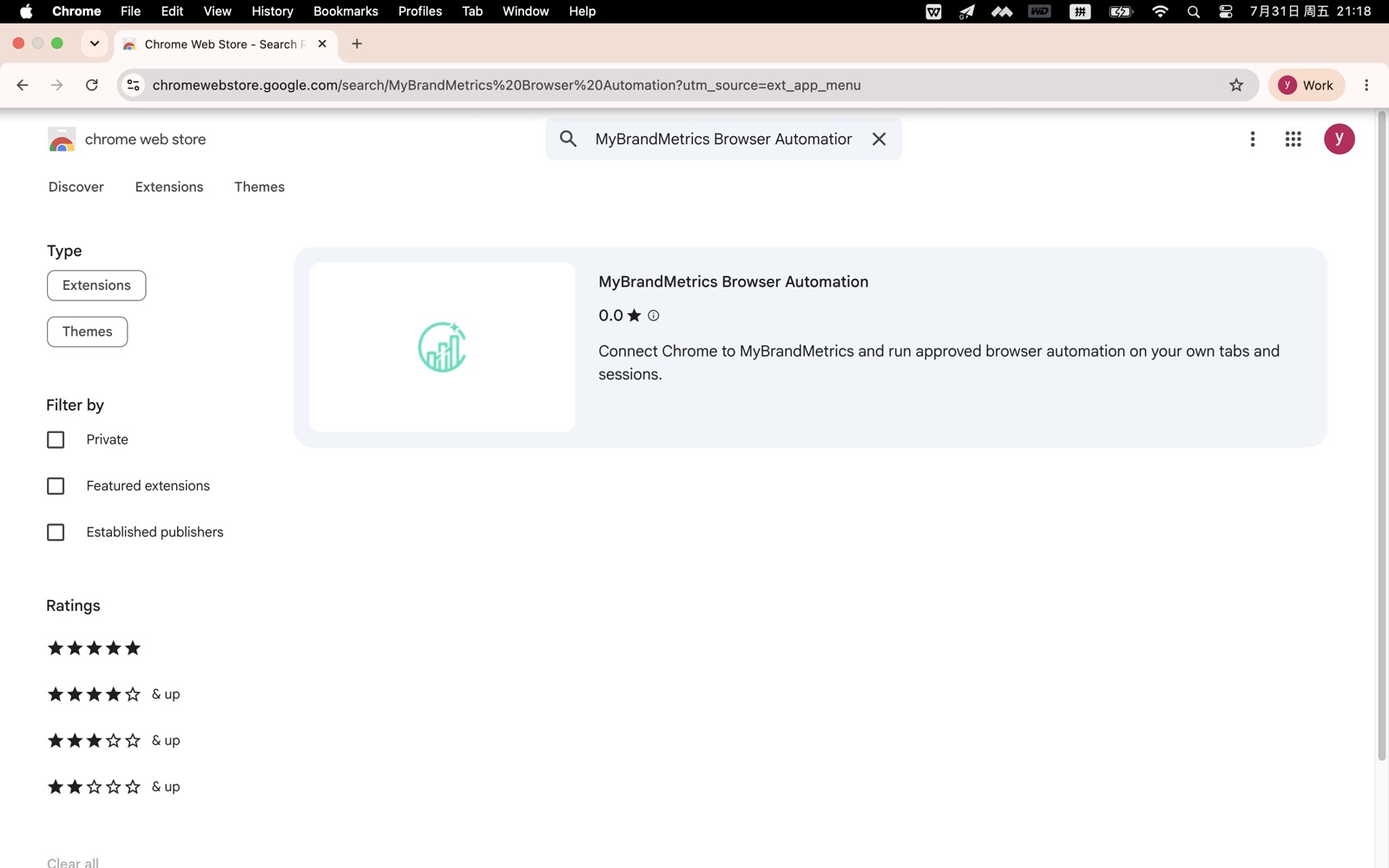
Open the MyBrandMetrics Browser Automation extension page in Chrome Web Store.
You can also open Chrome Web Store first and search for MyBrandMetrics Browser Automation.
Step 2: Add the extension to Chrome
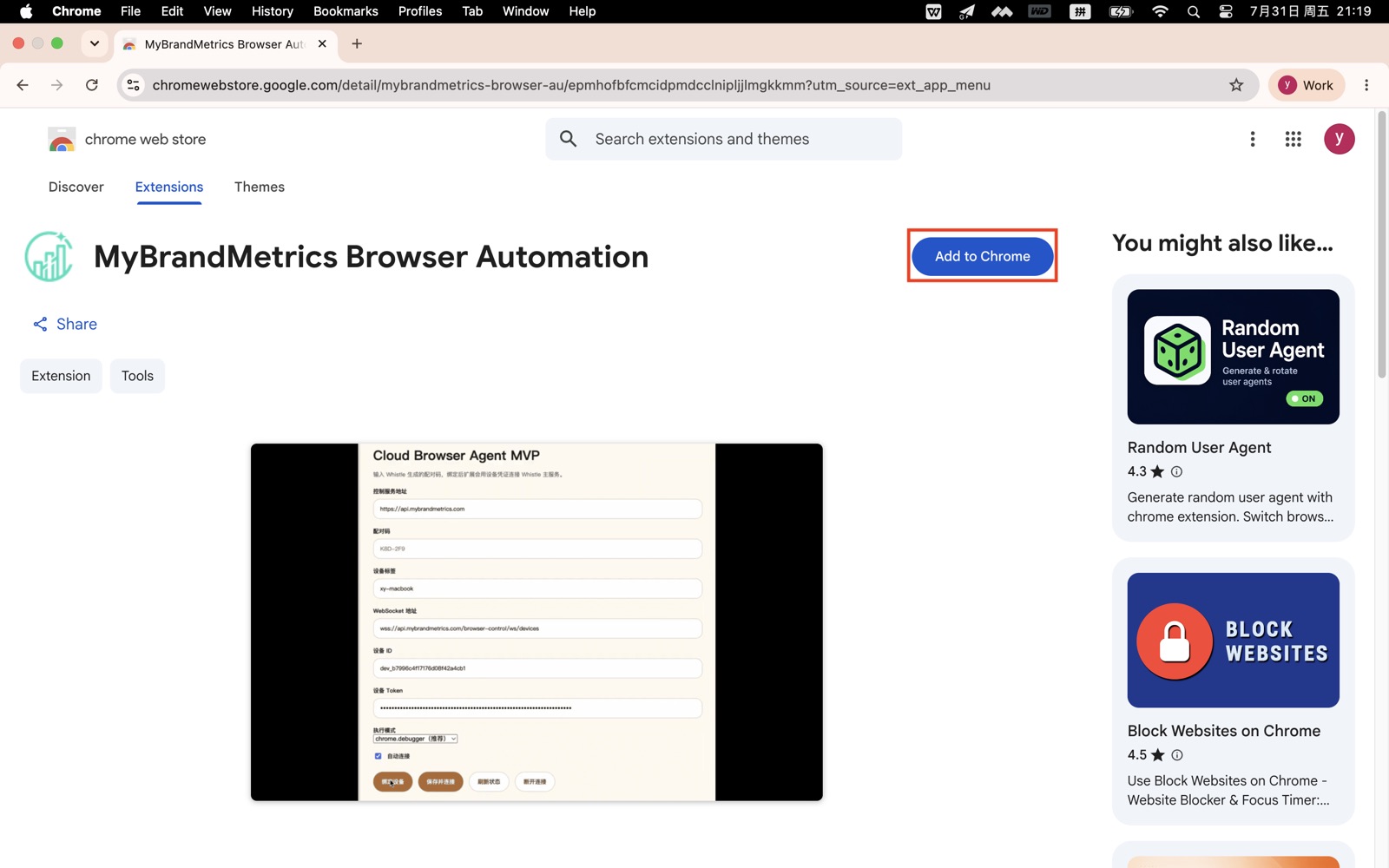
Click Add to Chrome.
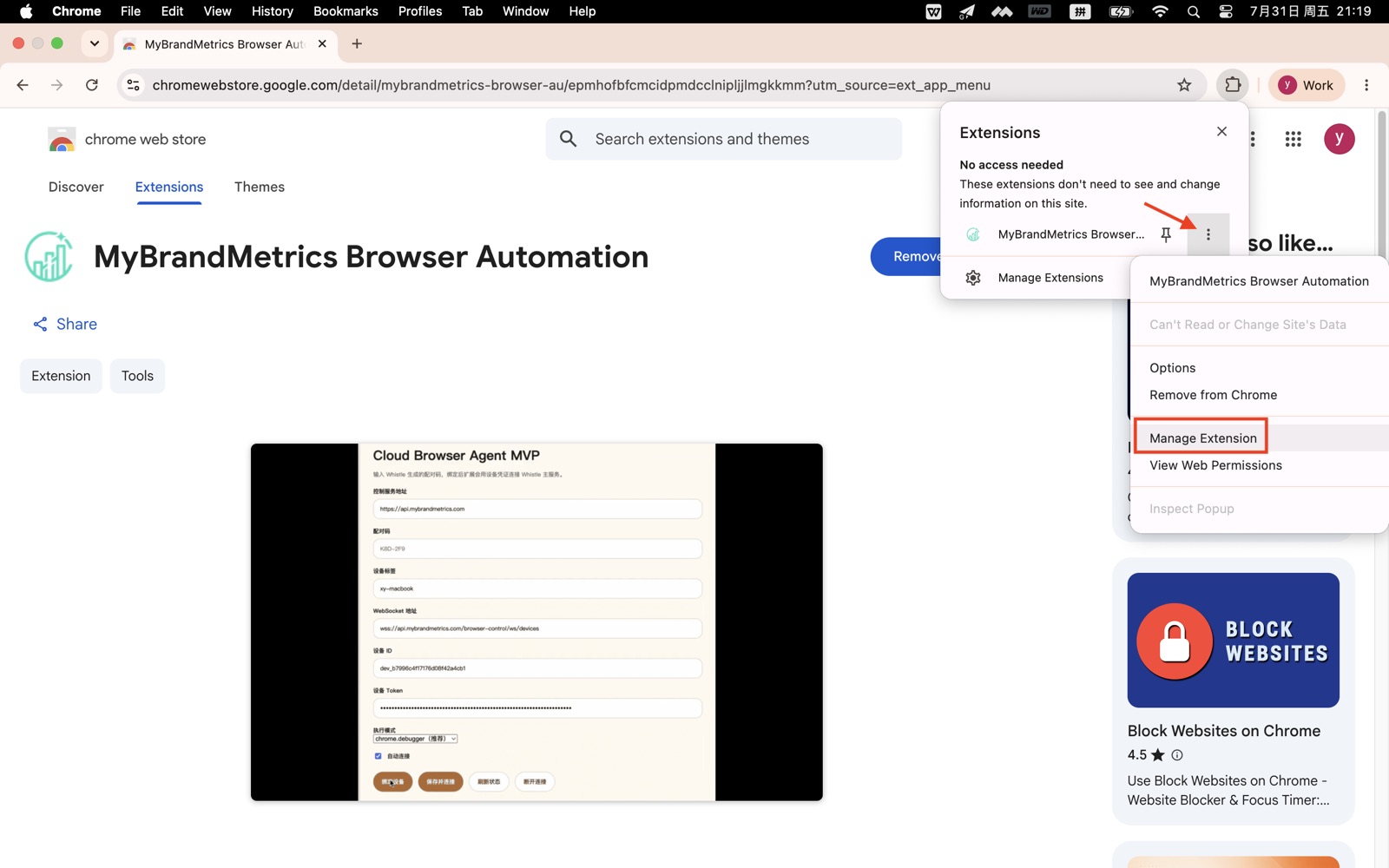
When Chrome shows the extension confirmation dialog, click Manage Extensions.
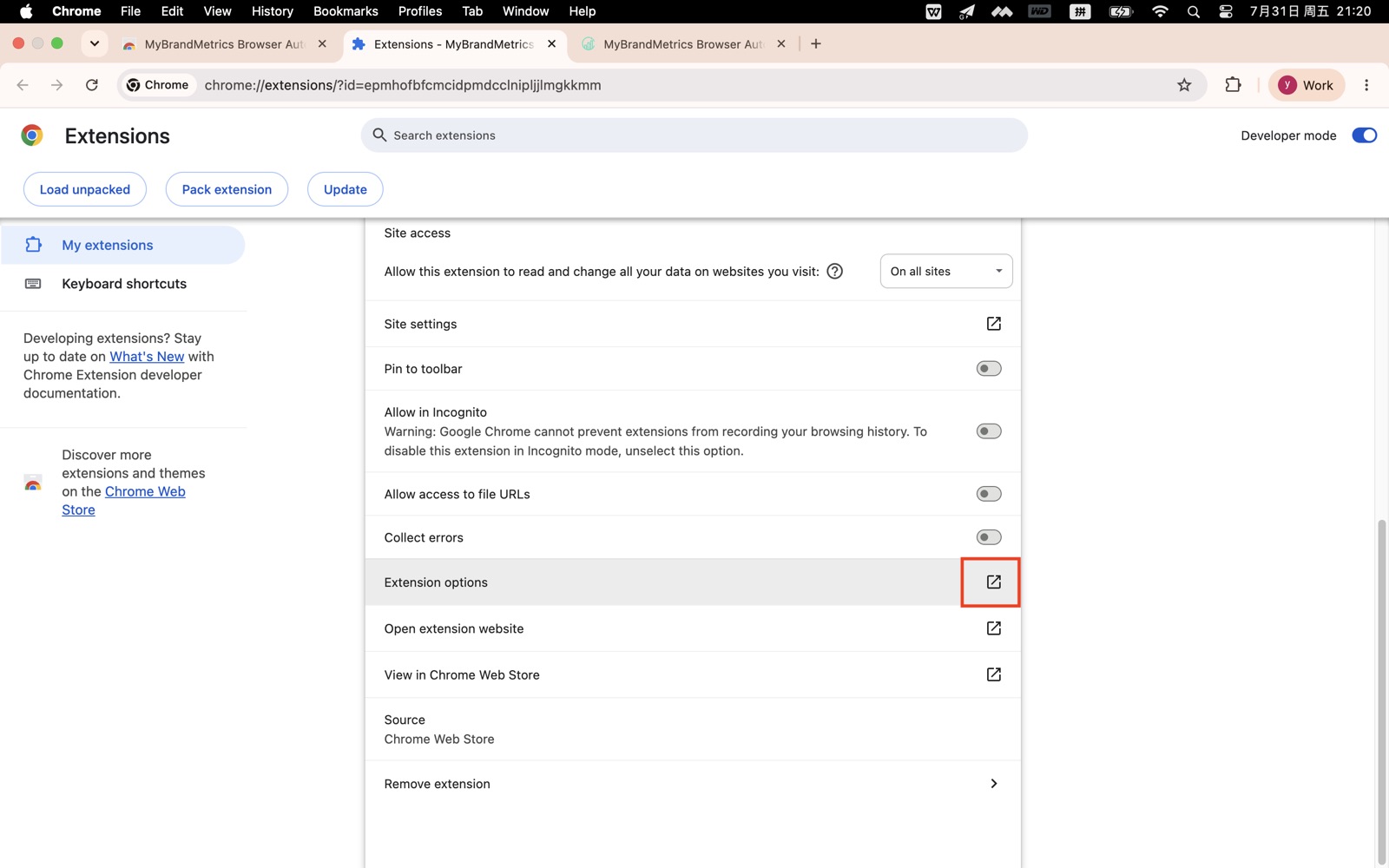
Step 3: Open Extension options
On the Chrome extensions page, find MyBrandMetrics Browser Automation.
Find Extension options, then click the arrow on the right side.
Step 4: Sign in with Google
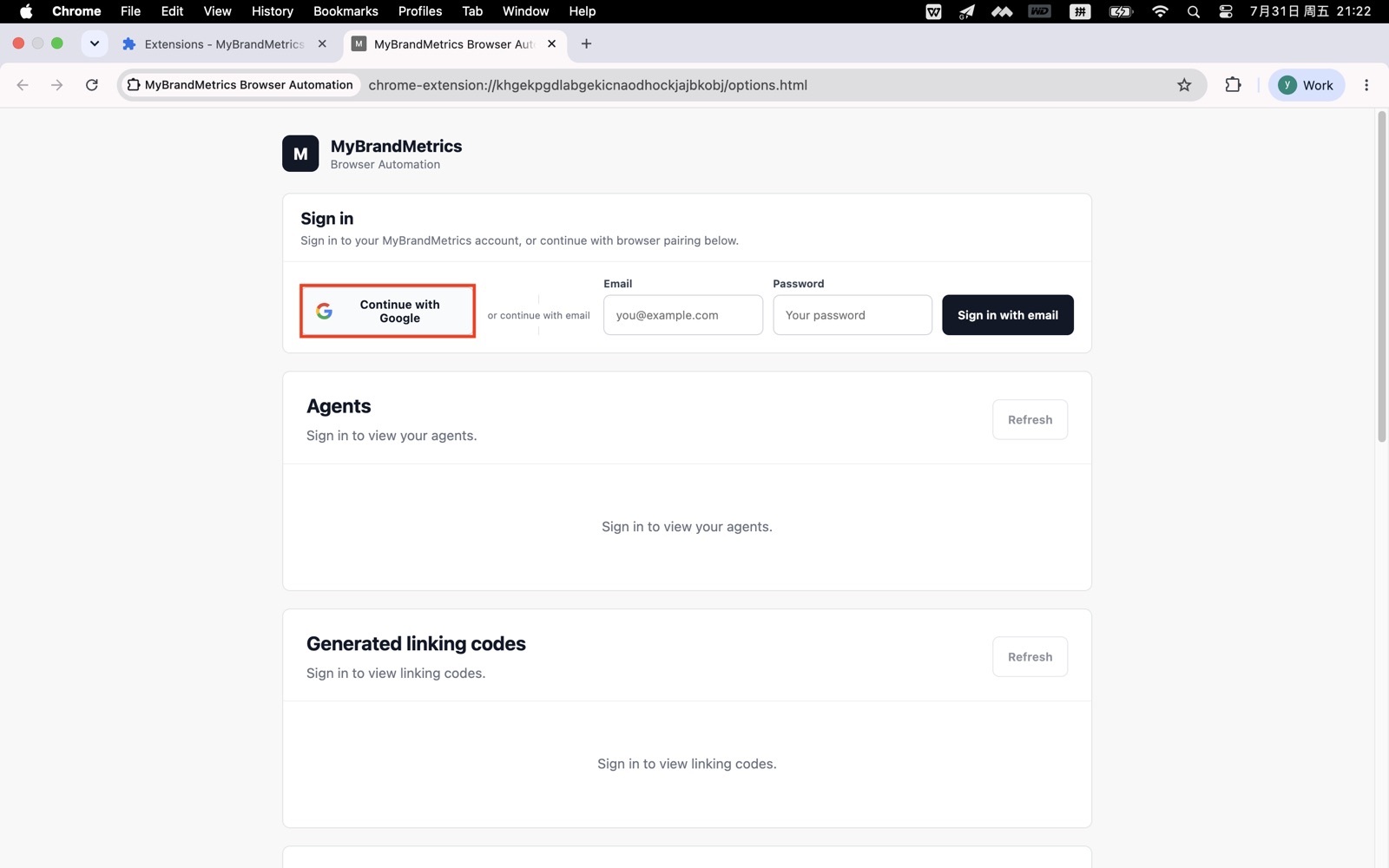
On the extension options page, choose Google sign in.
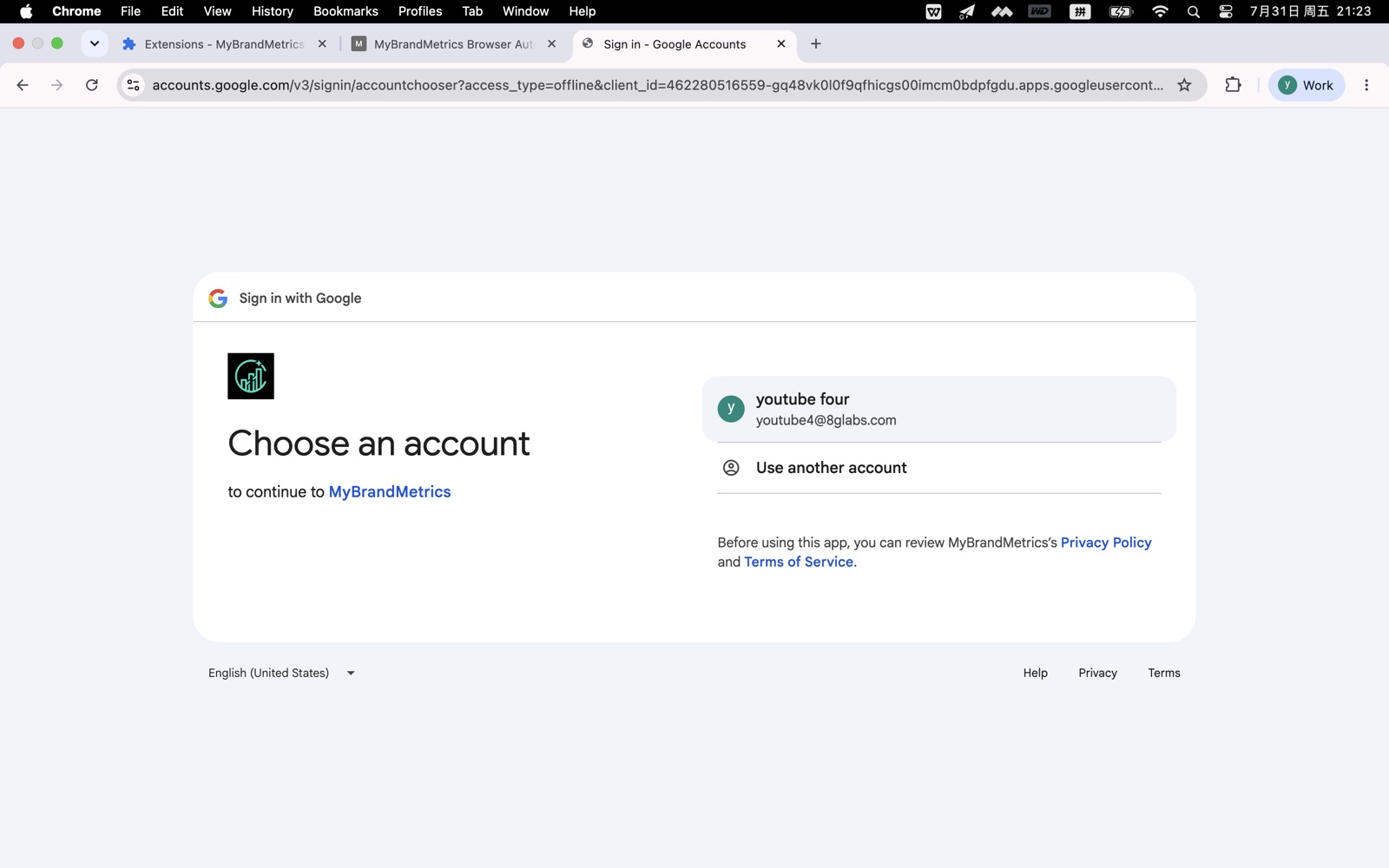
Complete the Google sign-in flow.
Step 5: Generate a pairing code
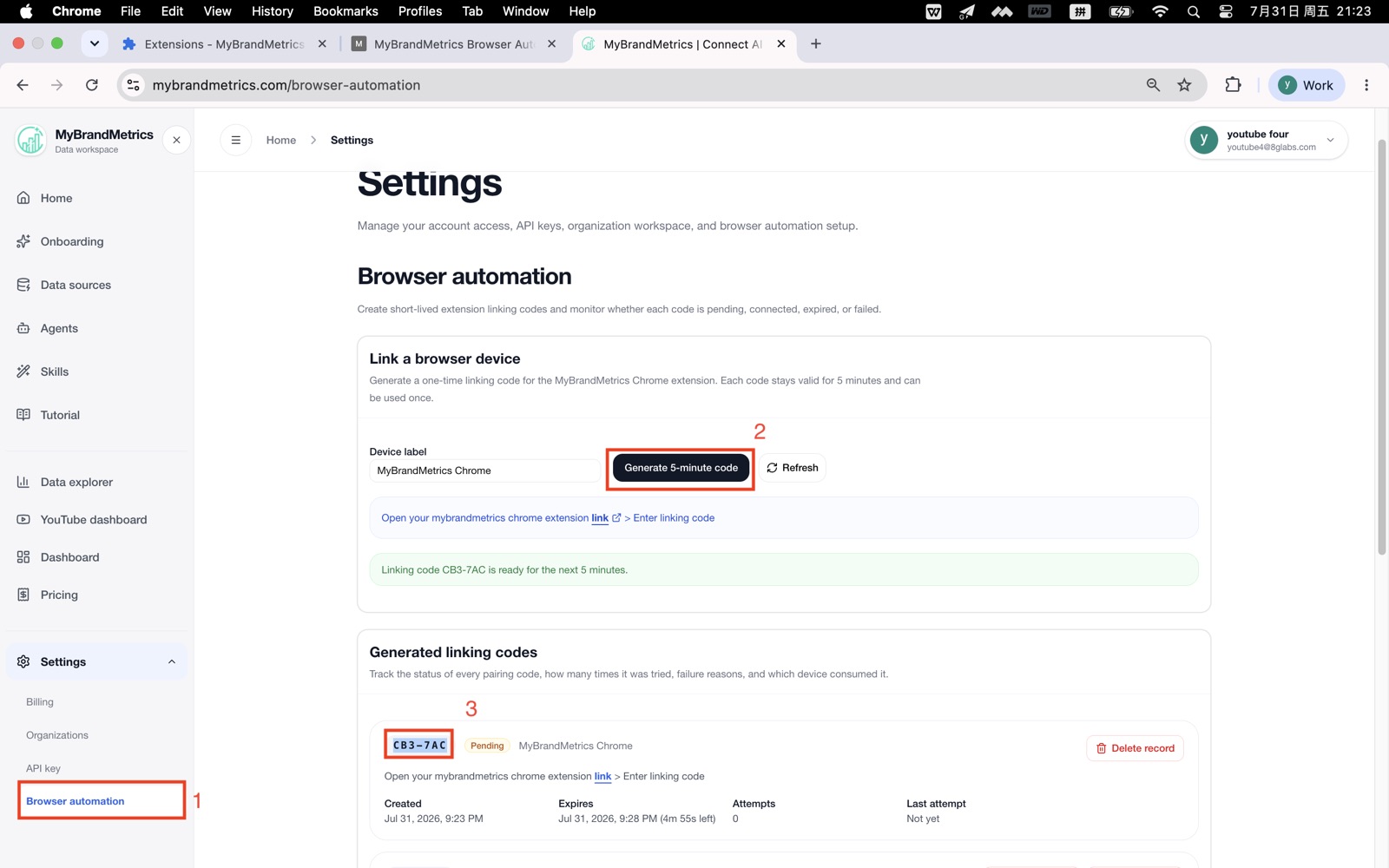
Open MyBrandMetrics and sign in.
Find browser-automation at the bottom of the left navigation.
Click Generate 5-minute code, then copy the pairing code that appears.
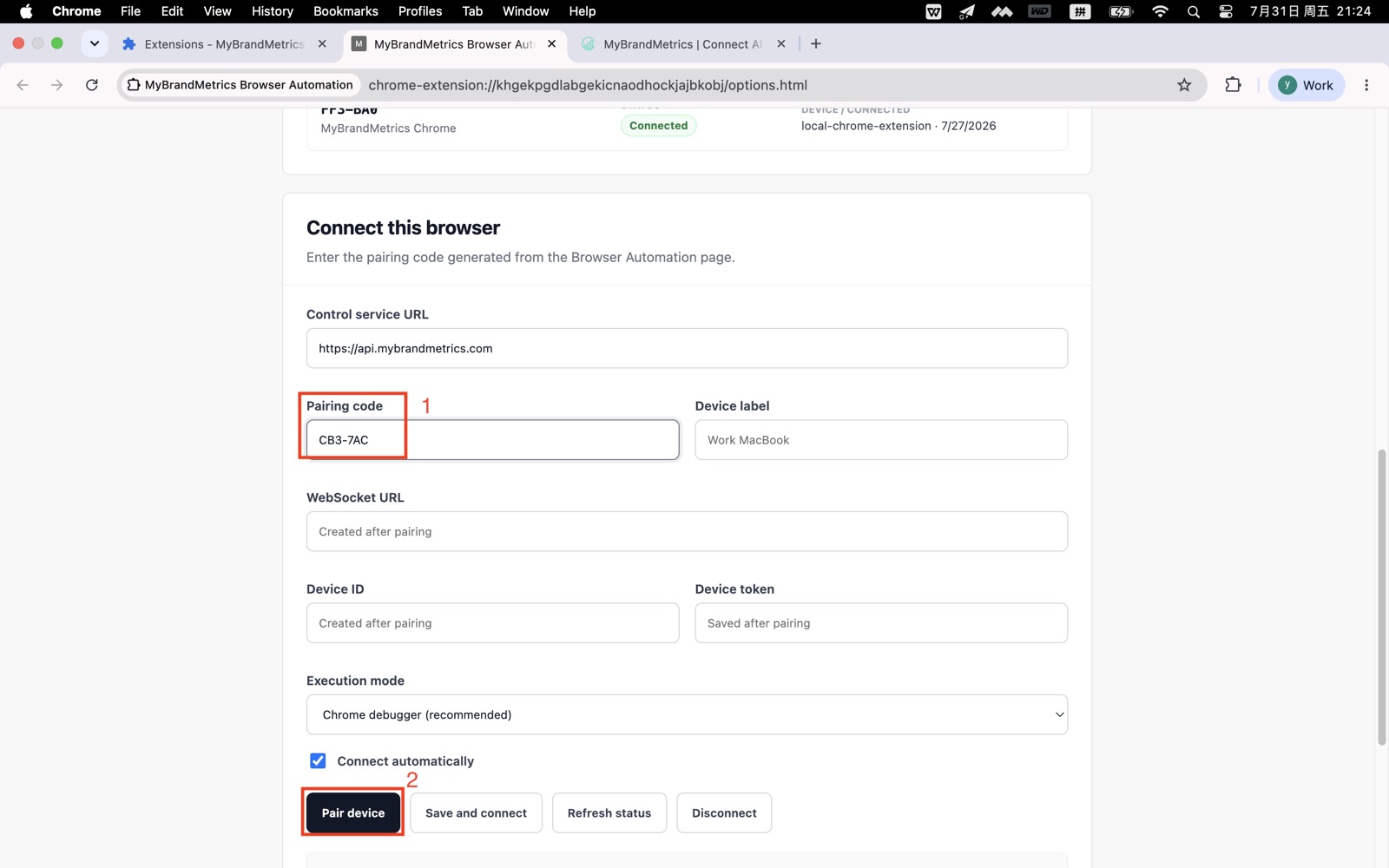
Step 6: Pair the device
Return to the Extension options page.
Paste the code into Pairing code.
Click Pair device, then click Save and connect.
After this step, the Chrome extension is installed, signed in, paired, and connected.
Step 7: Open a Hermes instance
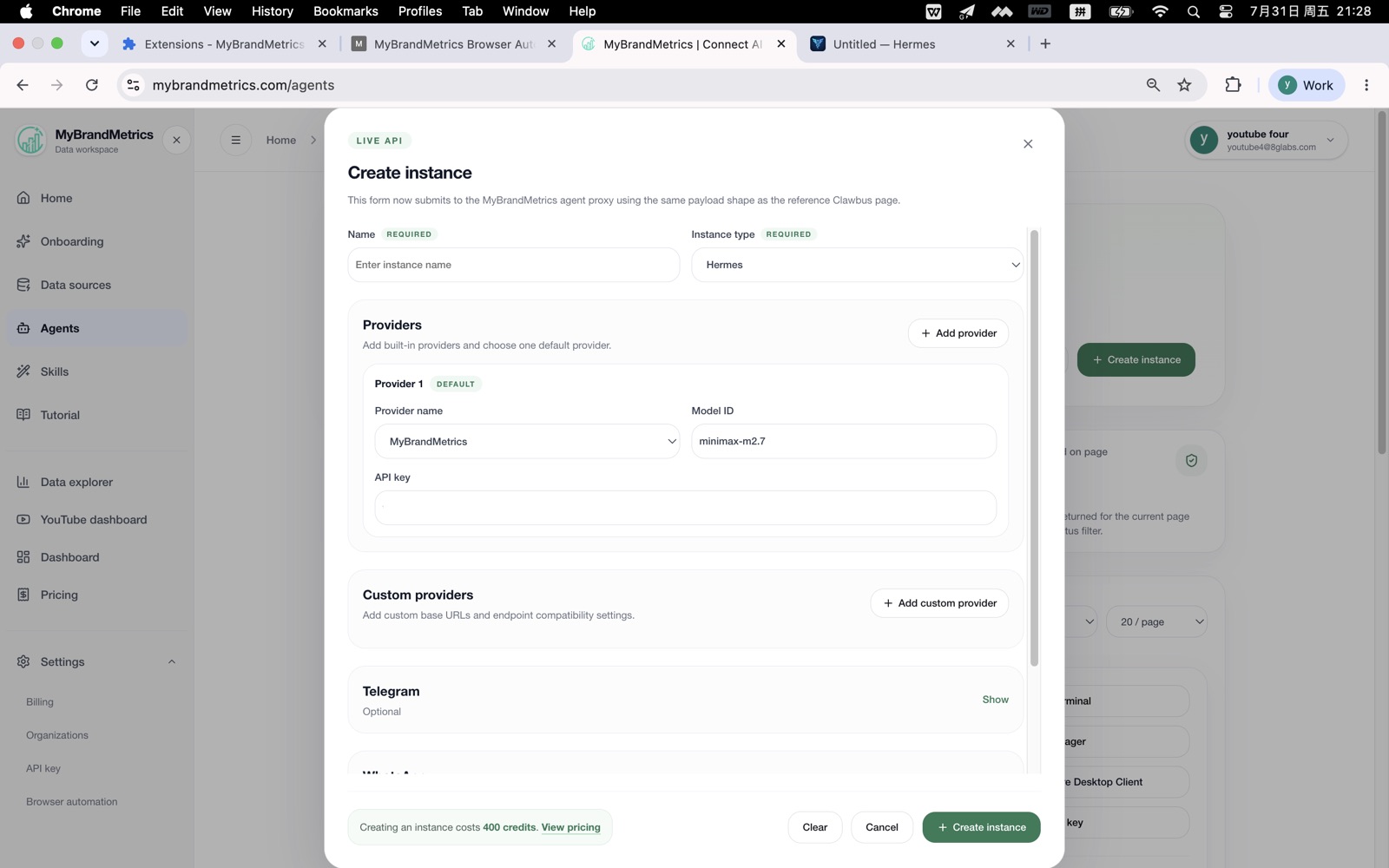
Create a new Hermes instance or open an existing one from the Agents page.
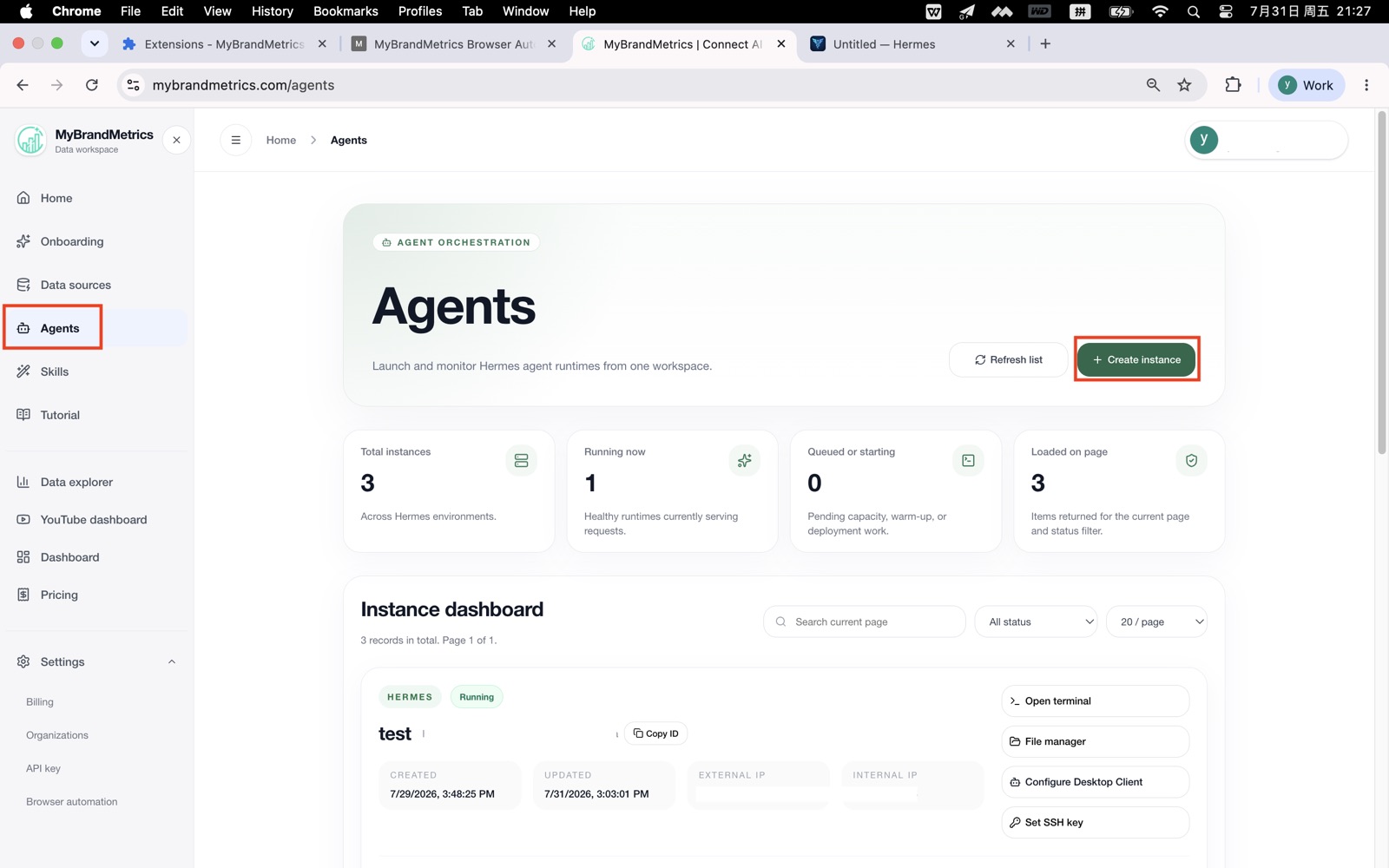
Click ACCESS URL.
Use GATEWAY TOKEN / PASSWORD to sign in to the Hermes agent web UI.
Step 8: Install the remote-browser skill
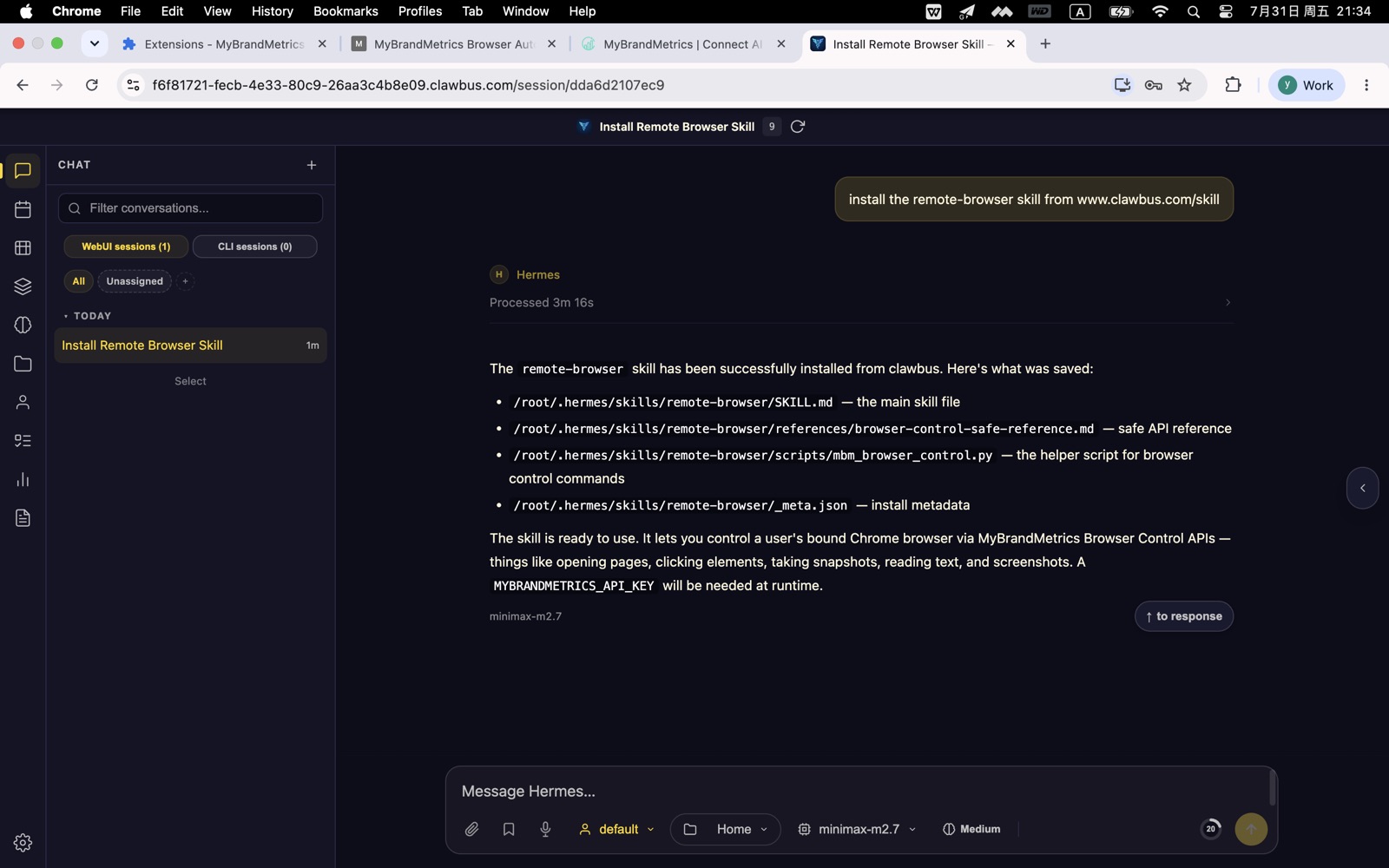
In the Hermes chat input, type this message:
install the remote-browser skill from www.clawbus.com/skillSend the message and wait for Hermes to install the remote-browser skill.
Step 9: Check the device connection
After the skill installation finishes, ask Hermes to check the connected browser automation device.
The device is ready when Hermes can see the paired browser and report that it is connected.
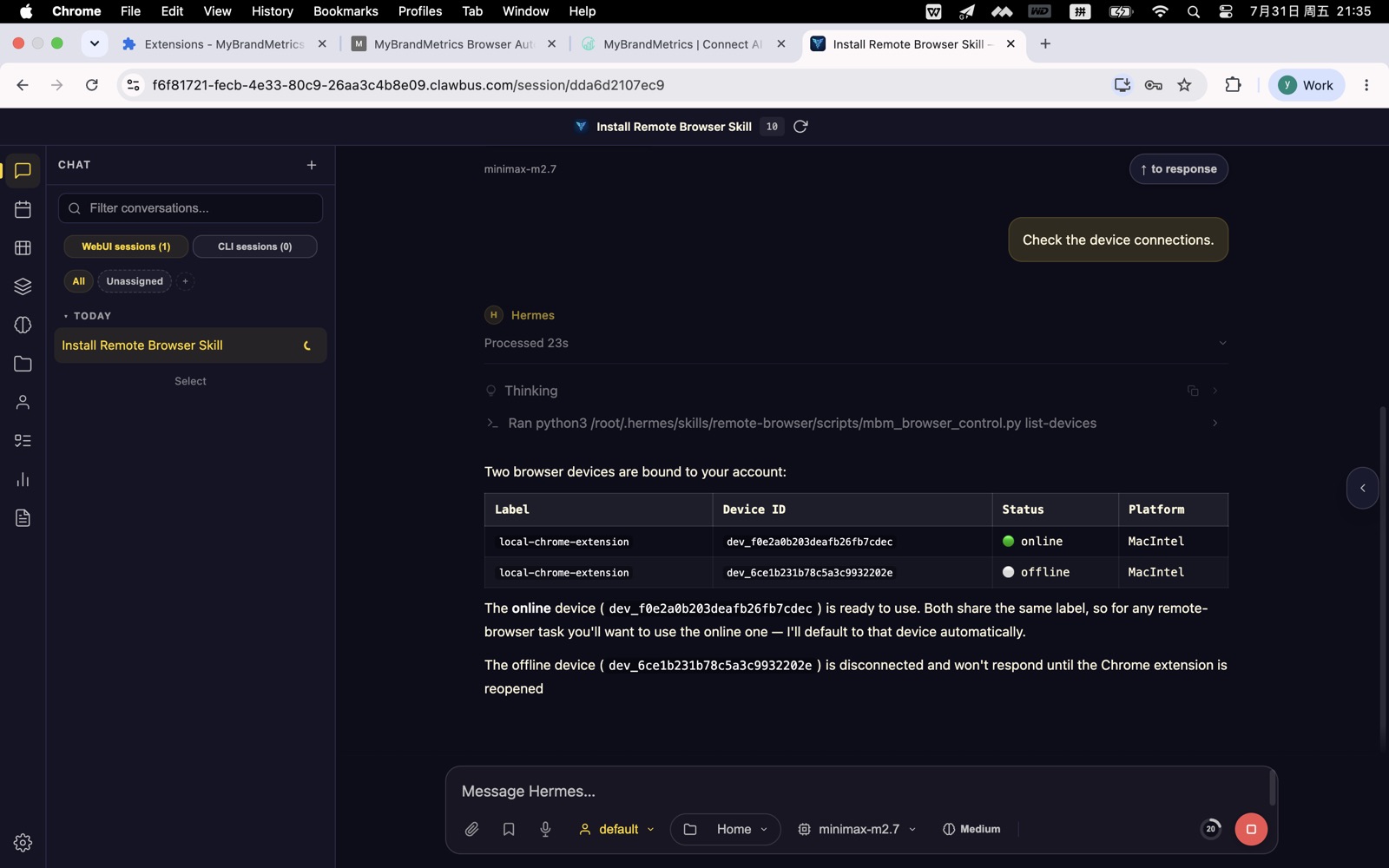
Step 10: Run web automation
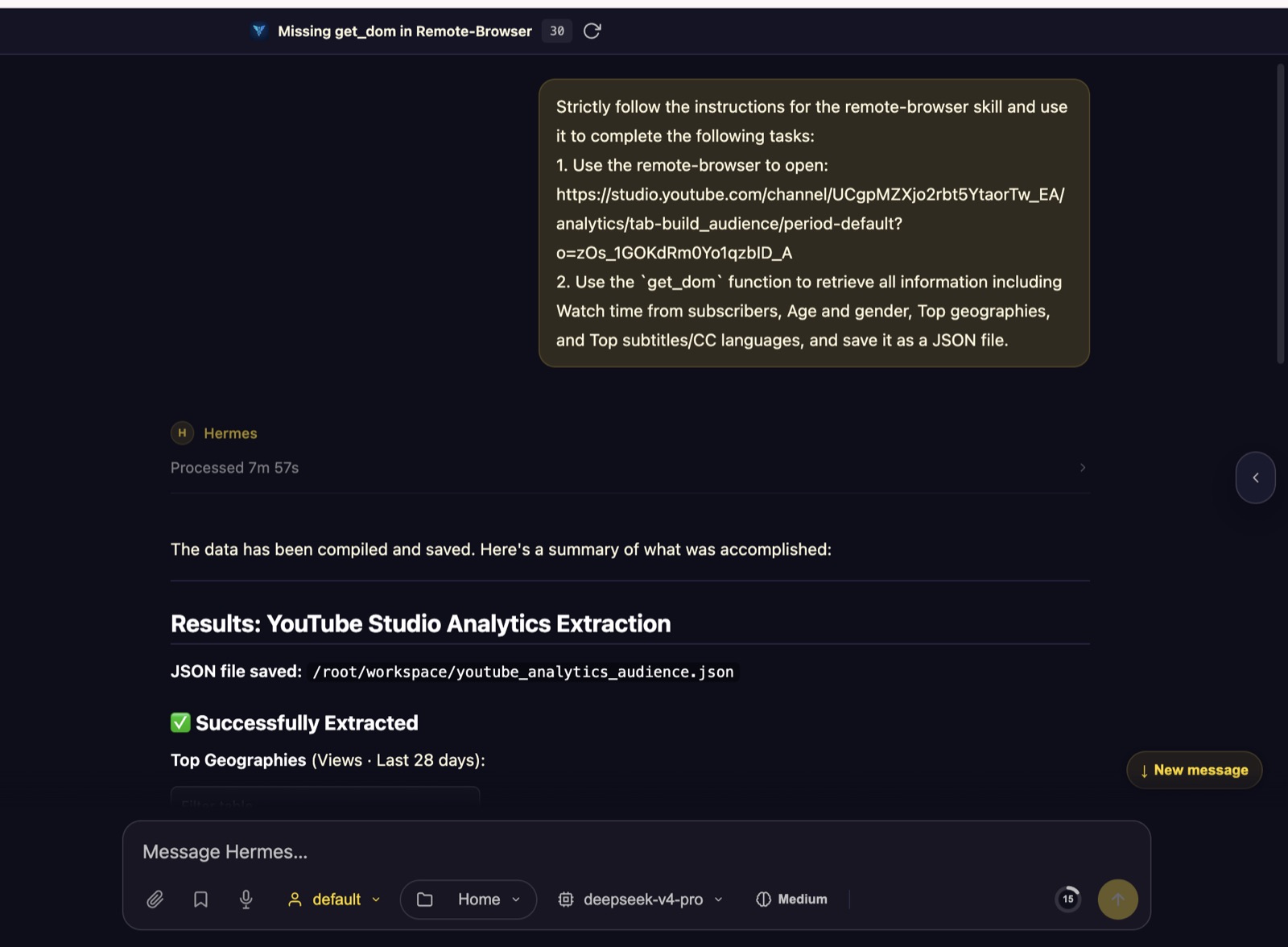
You can now ask Hermes to perform browser automation tasks.
For example, ask Hermes to open a website, navigate through pages, collect information, fill forms, or complete a browser workflow.
Troubleshooting
Pairing code expires
- Click
Generate 5-minute codeagain in MyBrandMetrics. - Copy the new code.
- Paste it into
Pairing codein Extension options. - Click
Pair device, thenSave and connect.
The extension is signed in but not connected
- Confirm you clicked
Save and connectafter pairing. - Refresh the Extension options page and check the connection state again.
- Generate a new 5-minute code and pair the device again if needed.
Hermes cannot find the browser device
- Confirm Chrome is open.
- Confirm the MyBrandMetrics Browser Automation extension is enabled.
- Confirm the extension is signed in with Google.
- Confirm the device was paired from the same MyBrandMetrics workspace.
- Ask Hermes to check the device connection again after saving the extension settings.